Inside a phone, software estimates charge remaining, tracks stored energy, and times runtime under stated workloads. Your battery icon shows a calculated State of Charge (SoC), not visible fuel inside a cell. A phone at 60% can drain far faster during video calls than during quiet standby.
You’ll see how percentages, capacity, battery health, runtime claims, and 12V readings differ across phones, laptops, and vehicles. The details help you judge your own battery behavior.
Battery Measurements Report Different Parts of the Story
A 75% status-bar symbol answers a different question from a laptop maker’s 15-hour runtime figure. Battery numbers describe current charge, stored energy, operating time, or long-term wear. Your next decision gets clearer once each metric has a defined job.
| Metric | What it describes | What it tells you |
|---|---|---|
| Battery percentage | Estimated State of Charge | Your device shows how much usable charge the fuel gauge believes remains. |
| Capacity | Charge or energy storage | mAh and Wh describe the rated size of a battery pack. |
| Battery life | Operating time | You see how long a device runs during a stated workload. |
| Battery Health | Current full-charge capacity versus original capacity | Your health reading shows long-term capacity loss. |
Percentage Shows State of Charge
Next to the battery icon, a number estimates the share of usable energy believed to remain at that moment. It does not state how many hours remain. Your device can revise the figure after gaming, cold-weather exposure, or a long charging session.
For example, a phone at 40% can last through a workday of light messages, yet lose that same 40% in under two hours with GPS navigation, a bright display, and weak cellular service. Percentage describes charge level. Your workload decides runtime.
Capacity, Runtime, and Health Answer Separate Questions
Battery capacity measured in milliamp-hours (mAh) and watt-hours (Wh) describes stored charge and energy. Milliamp-hours describe electric charge. Watt-hours include voltage, so a 5,000 mAh phone pack and a 5,000 mAh pack at another voltage do not necessarily store equal energy.
Battery health and maximum capacity compare current full-charge capacity with original capacity. A battery can show 100% charge while holding far less energy than it held while new. That difference leads directly to the calculation behind the number on your screen.
The Battery Management System Estimates Remaining Charge
The changing icon comes from a Battery Management System (BMS), also called a battery fuel gauge. It estimates what remains through sensors, software, and a model of the lithium-ion battery. You are seeing an informed calculation rather than a direct view inside the cell.
Coulomb Counting Tracks Charge Movement
Current flows into a battery during charging and out during use. Coulomb counting tracks that flow over time from a known full or low reference point. Your device subtracts outgoing charge and adds incoming charge throughout the day.
Small errors can build after partial charging and uneven use. The fuel gauge corrects its running total after it sees a reliable reference, such as a settled full charge. A shutdown near 15% can occur after the estimate drifts away from actual battery behavior.
Battery state of charge estimation depends on that running total, yet the total alone is not enough. A phone also checks cell behavior against its stored battery model. Your displayed percentage becomes steadier after those separate signals agree.
Voltage and Temperature Refine the Estimate
Voltage sensing gives the gauge another clue, but voltage alone cannot show remaining charge accurately in a lithium-ion battery under load. A camera burst or game can cause a steep voltage drop without meaning the cell suddenly lost that much stored energy.
Temperature compensation matters because cold cells deliver power less readily, while heat changes charging behavior and speeds chemical aging. Your device also factors in battery age, charge history, and a cell model before placing a percentage on a steadier scale.
A calibrated charge reading still cannot forecast time left without knowing how quickly the device uses energy.
Rapid percentage swings during cold weather or heavy use do not always point to a failed battery. They can show the gauge reacting to voltage sag, temperature, and a sudden rise in power demand.
Stored Energy and Power Draw Set Runtime
After the fuel gauge estimates charge, runtime comes down to two quantities: available energy and watts consumed. A larger Wh figure gives you a clearer comparison across batteries with different voltages. Watt-hours describe the size of the energy reservoir.
Runtime Comes From Energy Divided by Watts
A 60 Wh battery powering a 10-watt load lasts roughly six hours before recharging. A 60 Wh laptop running at 10 watts has a rough six-hour runtime. At 30 watts, that same pack reaches about two hours.
Real devices do not draw a steady number of watts. Display brightness rises, processors wake, and radios search for a signal. Your remaining-time estimate changes because software updates it from recent power consumption.
How remaining battery time is calculated depends on recent activity rather than a fixed percentage-to-hours conversion. A laptop that shifts from local documents to video editing can triple its watt draw. Your time estimate then falls even though the battery percentage changes gradually.
Because operating demand varies, laboratory figures describe a baseline rather than every owner’s daily experience.
| Activity on a 60 Wh laptop | Example average draw | Rough runtime |
|---|---|---|
| Idle document work | 6 watts | About 10 hours |
| Local video playback | 10 watts | About 6 hours |
| Video call | 18 watts | About 3.3 hours |
| Gaming or video editing | 35 watts | About 1.7 hours |
Manufacturer Runtime Claims Use Controlled Workloads
A published runtime starts with a repeatable workload and ends at a defined cutoff or automatic shutdown. A video claim can involve a local media file, fixed brightness, fixed volume, and stable temperature. You should treat the number as a benchmark rather than a personal forecast.
Controlled Workloads Produce Comparable Results
- Local video playback: Your device plays stored video continuously, avoiding the changing demand of streaming.
- Web browsing: Your device loads sites on a stated schedule through a selected network connection.
- Talk time: Your phone stays on a voice call until it reaches the stated endpoint.
- Standby operation: Your device remains powered with little display or processor activity.
- Mixed-use routines: Your device cycles through browsing, video, messaging, and idle periods.
Brightness, speaker volume, wireless radios, signal strength, ambient temperature, software version, and background activity shape the final result. Cellular service is especially variable. Your phone can draw extra power while searching for a distant tower in a parking garage or on a rural road.
Published Claims Compare Similar Conditions
Check each test condition before placing two devices side by side using published figures. A claim loses value once your habits differ sharply from the stated workload. Streaming over cellular data, for example, places display, modem, processor, and radio demand into play at once.
That gap between a controlled run and a normal day explains why two owners can report very different battery life from the same model. Your usage history reveals which parts of daily use raise average watt draw.
High Power Demand Drains Charge Faster
A bright display can become the largest drain during active phone use, while weak cellular reception can quietly dominate during travel. Power draw, rather than the percentage itself, decides how quickly charge disappears. Your habits set that draw minute by minute.
High-Demand Features Shorten Runtime
- High screen brightness: Your display draws more power as brightness rises, especially on large OLED and laptop panels.
- Weak cellular signal: Your modem works harder while searching, transmitting, and switching between distant towers.
- GPS navigation: Your phone keeps location hardware, maps, data, and the display active for long stretches.
- Camera recording: Your camera, image processor, display, and storage work together during video capture.
- Gaming and streaming: Your graphics processor, network hardware, speakers, and display raise total watt draw.
- Background activity: Your apps can sync, fetch location, upload files, or wake the processor without an open screen.
Heat adds strain because battery chemistry becomes less stable at elevated temperatures. Cold raises internal resistance and reduces available power. Your percentage can fall quickly outdoors in freezing weather, then recover somewhat after the device warms indoors.
Remaining Time Follows Recent Behavior
Remaining-time predictions are not fixed conversions from percentage to hours. Software looks at recent consumption, then revises the projection as your activity changes. You can see a three-hour estimate shift to five hours after closing a game and lowering brightness.
Persistent fast drain during light use deserves attention. Review battery usage history before blaming the cell, since a stuck sync process or poor signal can consume far more power than normal standby.
Phones, Laptops, and Vehicles Show Different Indicators
The same State of Charge idea appears across phones and computers, yet each platform exposes different clues. An iPhone, Android phone, Samsung handset, laptop, and vehicle dashboard do not interpret battery behavior in exactly the same way. Your indicator only makes sense in the context of its device type.
| Device type | Primary indicator | What to watch |
|---|---|---|
| iPhone | State of Charge and Battery Health settings | You can review maximum capacity and app-level energy use. |
| Android or Samsung | Percentage, usage charts, and charging controls | You can identify screen time, background activity, and high-use apps. |
| Laptop | Percentage, charge limit, and power mode | You can spot workload-driven swings from idle work to demanding tasks. |
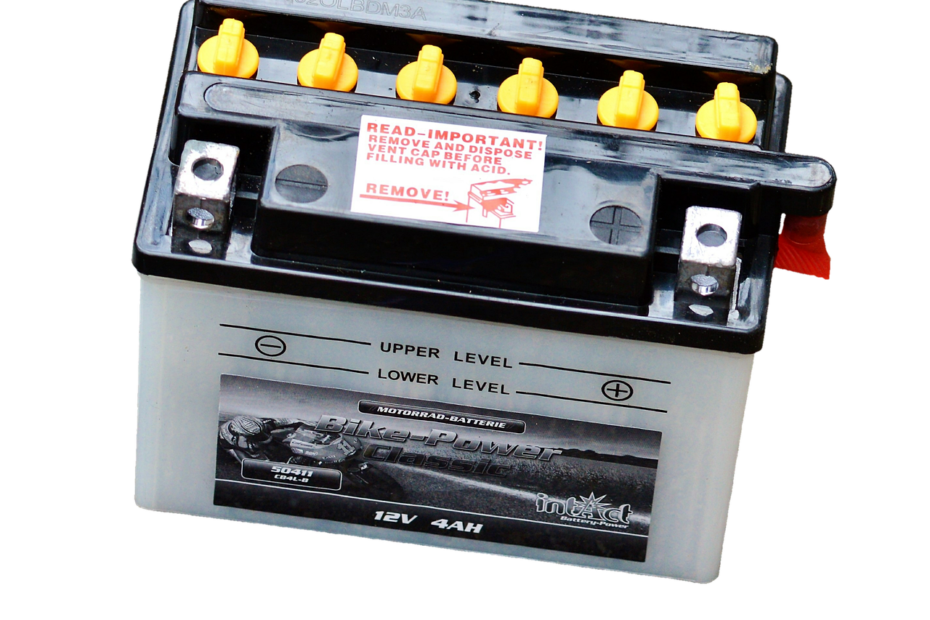
| 12V battery | Voltage-based dashboard or meter reading | Engine state, load, temperature, and chemistry change the reading. |
iPhone and Android systems rely on related fuel-gauge principles, though their menus differ. How to check battery health on iPhone and Android depends on the model, system version, and maker utility. You can review maximum capacity, usage charts, charging controls, and high-use apps through settings or device tools.
Laptops show larger runtime swings because processors can idle at a few watts or surge under compiling, gaming, or rendering. A 12V battery level indicator reading needs different context. Resting voltage matters, yet an engine running, recent charging, surface charge, and electrical load can distort the picture.
Aging Changes Capacity and Gauge Accuracy
A battery can reach 100% on screen and still run for fewer hours than it did during its first year. Charge cycles, calendar age, heat exposure, and rising internal resistance reduce usable capacity. Your gauge reports full relative to what the aged battery can now hold.
Health Describes Capacity Loss
A Battery Health reading of 75% means the pack may hold about three-quarters of its original full-charge capacity under comparable conditions. Your runtime can be better or worse than that rough proportion because device efficiency and workload still control watt draw.
Internal resistance rises as a cell ages. Under a sharp load, an older cell’s voltage can sag enough to trigger a shutdown while percentage remains above zero. That symptom deserves more attention than a modest drop in daily runtime.
Battery health vs battery percentage is a useful distinction during troubleshooting. Percentage tells you what the gauge estimates remains today. Health tells you how much energy the pack can hold compared with its original capacity.
Calibration Corrects the Estimate, Not the Cell
Calibration helps software align its State of Charge estimate with observed full and low points. A controlled charge and discharge cycle can correct a drifting indicator on some devices. Follow the device maker’s directions rather than repeatedly running lithium-ion cells empty.
Calibration cannot restore lost capacity, reduce chemical wear, or repair a swollen pack. Your practical task is separating a reporting issue from a battery that no longer stores enough energy for your day.
Battery Numbers Help You Make Practical Decisions
A percentage is useful for the next few hours, while Battery Health speaks to months or years of ownership. Manufacturer runtime figures offer a controlled reference point. Your own battery history shows the conditions shaping daily use.
Each Number Has a Practical Job
- Review health settings: Your maximum-capacity figure can show whether age explains shorter runtime.
- Inspect usage history: Your battery screen can reveal displays, maps, streaming, or background apps behind rapid drain.
- Watch signal conditions: Your cellular modem can draw extra power in basements, elevators, and rural areas.
- Compare watt-hours: Your pack comparisons become clearer where nominal voltages differ.
- Watch warning signs: Rapid drain, shutdowns, swelling, or repeated gauge errors point toward service.
The 20/80 battery rule is a longevity habit, not a rule for accurate percentage readings. Keeping a lithium-ion battery away from long periods at charge extremes can reduce heat and stress. You do not need to avoid a full charge before travel or a demanding workday.
How battery life is measured in devices becomes useful once each number leads to a decision. Review your Battery Health, inspect the apps and conditions behind high consumption, and seek service for swelling or sudden shutdowns rather than trusting a single percentage reading.
What Battery Numbers Mean in Daily Use
Your battery icon is a moving estimate shaped by current tracking, voltage sensing, temperature, and battery age. Runtime is energy divided by power draw, so the same charge lasts very differently across tasks. Use health figures to judge long-term wear, use Wh to compare packs, and treat abrupt behavior as a symptom worth investigating.
FAQ
How do devices measure battery percentage?
A Battery Management System calculates the figure shown beside the battery icon. Your fuel gauge tracks current entering and leaving the pack through coulomb counting, then checks voltage, temperature, charging history, and battery age against a cell model. The displayed number is State of Charge, not a direct reading of remaining runtime.
What is the difference between battery life, battery level, and battery health?
Battery level is your current State of Charge, shown as a percentage. Battery life is the time your device operates during a workload, while Battery Health describes current full-charge capacity compared with original capacity. A device can show 100% battery level while its health is only 75%.
How does coulomb counting work in a phone or laptop battery?
Coulomb counting tracks electrical current flowing into and out of your battery over time. The battery fuel gauge adds incoming charge during charging and subtracts outgoing charge during use. Voltage, temperature, and battery history help correct small tracking errors that can build after partial charging.
Why is voltage alone not an accurate way to measure a lithium-ion battery’s remaining charge?
Voltage changes under load, temperature, and charging conditions. Your phone can show a lower voltage during gaming or camera use because high demand causes voltage sag. A fuel gauge needs current tracking, temperature data, charge history, and a battery model alongside voltage.
How do manufacturers test battery life claims?
Manufacturers run a stated workload under controlled conditions, such as local video playback at a fixed brightness and volume. The device runs until a defined cutoff or shutdown. Your results differ with cellular signal, display settings, background activity, temperature, and task intensity.
Why does my battery percentage jump or drop suddenly?
A sudden percentage change can happen after heavy demand, cold weather, a restart, or a fuel-gauge correction. Your device may revise its State of Charge after comparing coulomb-counting data with voltage, temperature, and battery behavior. Repeated jumps with shutdowns can point to an aging cell or gauge error.